
Turn picture into comic-style panels with AI.
Upload a picture, choose the comic direction, and create a stylized panel draft that can be edited, captioned, and reused in a comic project.
Convert one source image
PNG, JPG, or WebP up to 5MB. Sign-in and 2 credits are required.
Color comic ink
One conversion costs 2 credits. A final failed job is marked failed and refunded by the server.
Use a clear image with one main subject. The result is an interpretation, so review faces, hands, logos, and product details.
Definition
What is turn picture into comic?
A picture-to-comic tool transforms an uploaded image into a comic-style panel or sequence using style direction, visual generation, and optional caption editing.
Short answer
When to use this workflow.
Use this workflow when you are starting from an image instead of a text prompt and want a visible before-and-after comic transformation.
Turn a photo reference into a comic-style draft.
Use the picture as source context, choose a comic direction, and generate a stylized panel that still follows the original subject or scene.

Convert one picture into a short comic moment.
A photo can become a single panel, a reaction beat, or the seed for a short strip when paired with captions and a simple story idea.
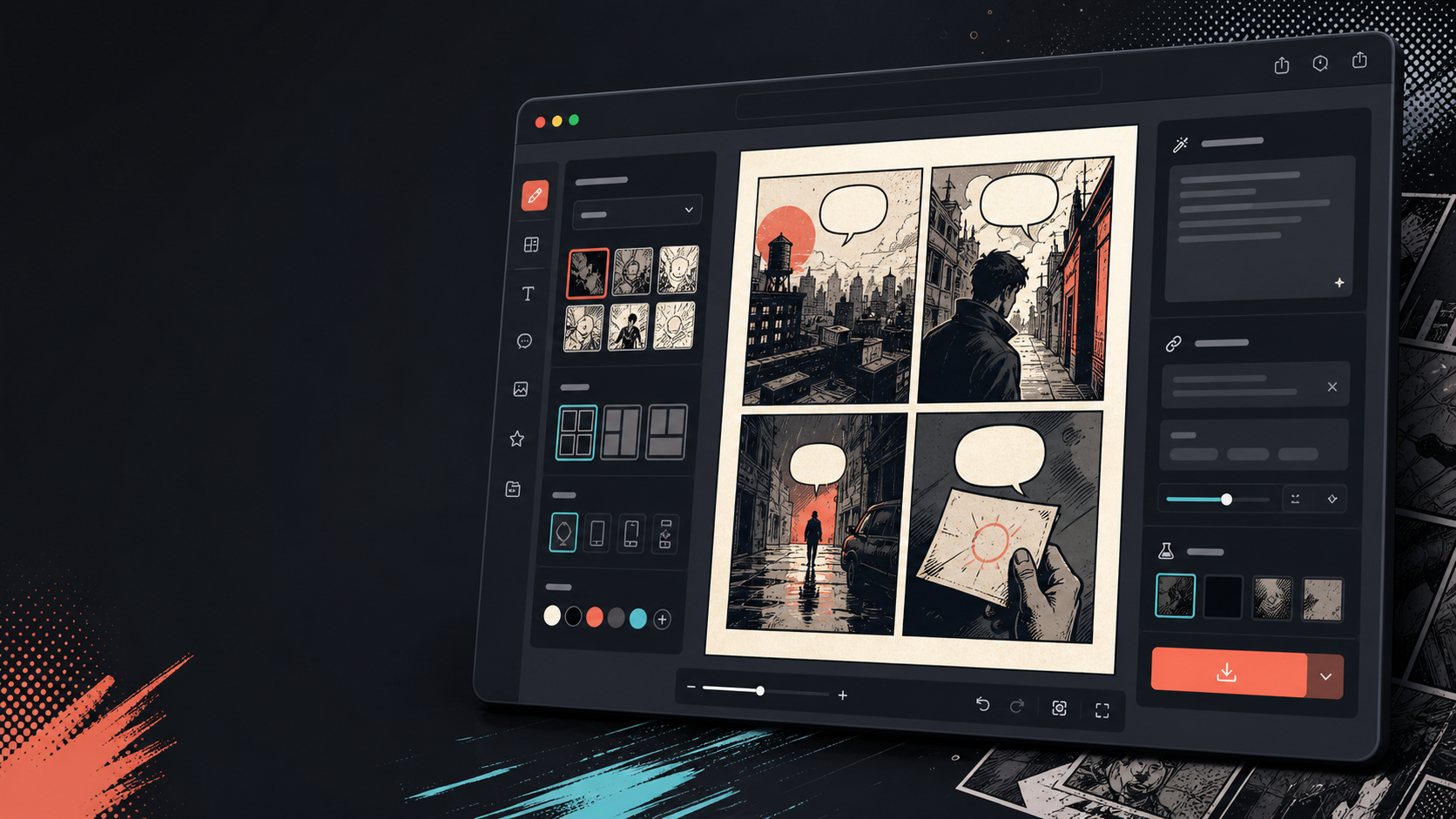
Add captions, bubbles, and layout after the image changes.
Image conversion is only the first step. Finish the panel by adding dialogue, narration, or a comic page layout.
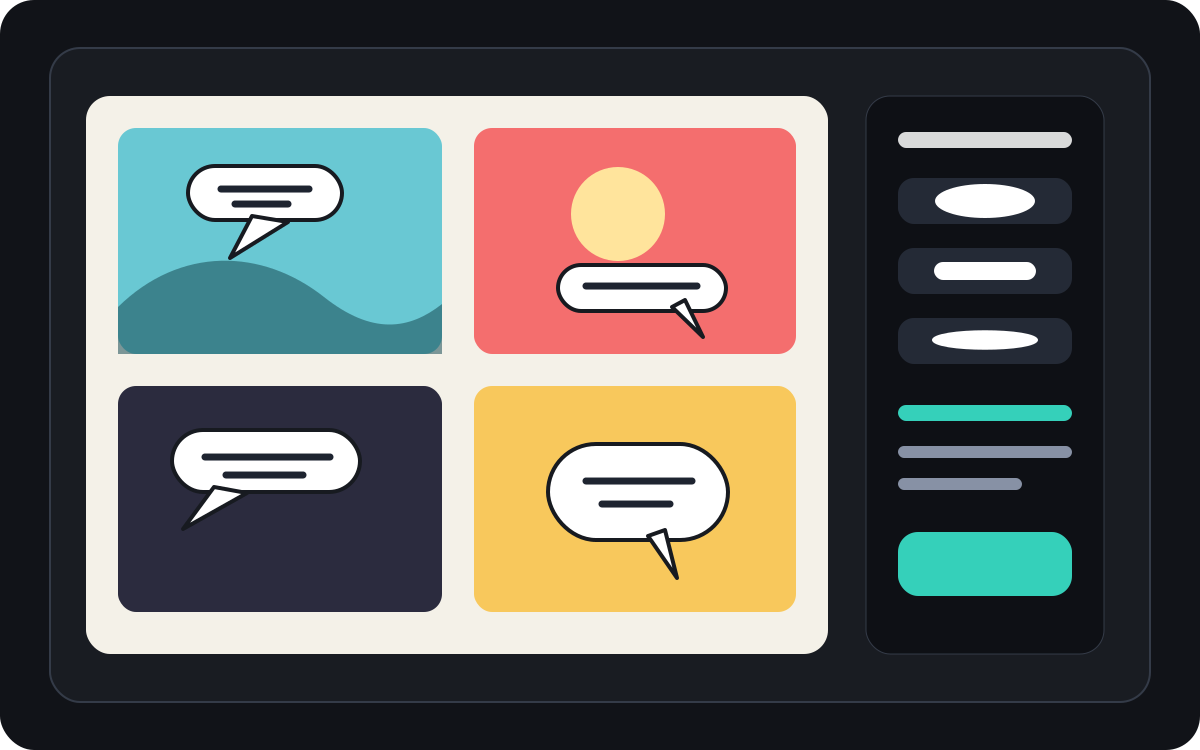
Built around a real comic-making task.
Users who already have a photo or reference image and want to transform it into a comic scene, strip, or stylized panel draft.
01
Built for users who already have a picture and want a comic-style version.
02
Makes the input and output visible so users understand the transformation.
03
Pairs image conversion with caption, bubble, and project editing workflows.
What creators can make here.
Pick the closest project type, then open Studio with a clearer idea of the draft you want to make.
What you can draft.
These are practical starting points for review, sharing, and continued editing.
A short path into Studio.
Start with the smallest useful step, then refine the draft inside the editor.
Start with these turn picture into comic prompts.
Use these as starting points, then swap in your own characters, setting, and tone.
Travel photo
Turn this street cafe photo into a warm comic panel with a short travel diary caption.
Output: Comic-style travel panel with editable caption direction.
Pet comic
Transform this dog photo into a funny comic panel with space for one speech bubble.
Output: Pet comic draft ready for bubble placement.
Product scene
Turn this product photo into a clean comic-style ad panel with a simple before-and-after story.
Output: Marketing comic panel with stylized product context.
Tools that help the draft become usable.
Image-first workflow
Start from a real photo or reference instead of a blank prompt.
Before-and-after review
Compare the source image and comic draft before choosing the final direction.
Comic finishing tools
Add captions, bubbles, and layout choices after the image is stylized.
Keep building with the right next tool.
More comic creation pages.
Related workflow
Comic Bubble Generator for Speech Balloons
Add speech bubbles, captions, tails, and readable comic dialogue with a comic bubble generator built for panel editing.
Open page
Related workflow
Comic Panel Generator for Single-Scene Drafts
Generate individual comic panels online with AI prompts, camera direction, style controls, character notes, and export-ready panel drafts.
Open page
Related workflow
AI Comic Maker for Editable Comic Pages
Use AI to draft comic panels, captions, and character-consistent scenes from one focused comic maker studio.
Open page
Common turn picture into comic questions.
How do I turn a picture into a comic?
Upload a picture, choose a comic style, generate a comic-style draft, then review the before-and-after result. You can add captions or bubbles after the conversion.
Can I turn a photo into a comic strip?
Yes. A photo can become one panel first, then you can build a short sequence around it with captions, reactions, or added story beats.
Is this the same as an AI comic generator?
No. An AI comic generator usually starts from text. This page starts from an image and focuses on the visual transformation from picture to comic panel.
What pictures work best?
Clear photos with a strong subject, readable lighting, and simple backgrounds usually convert better than blurry or crowded images.
Can I add speech bubbles after conversion?
Yes. After the image becomes a comic-style draft, you can add speech bubbles, captions, or narration boxes to make the panel read like a comic.
Can I use it for product photos?
Yes. Product photos can become comic ad panels, before-and-after visuals, or campaign storyboards when the scene and message are clear.
Will it preserve every detail from the photo?
No AI transformation is exact. Treat the output as a comic-style interpretation and review important faces, objects, text, and brand details before use.
Can I export the result?
Download completed images from the result view. Studio exports the editable project data as JSON rather than a flattened page or print-ready PDF.
Start your next comic draft.
Open the Studio, choose a layout, and turn the idea into a working comic draft.
Try this workflow