
How to Split a Webtoon Without Cutting Panels or Dialogue
A practical production guide to cutting a long vertical comic into ordered files without breaking a face, speech balloon, effect or scene transition.
Written and reviewed by Comics Maker Editorial
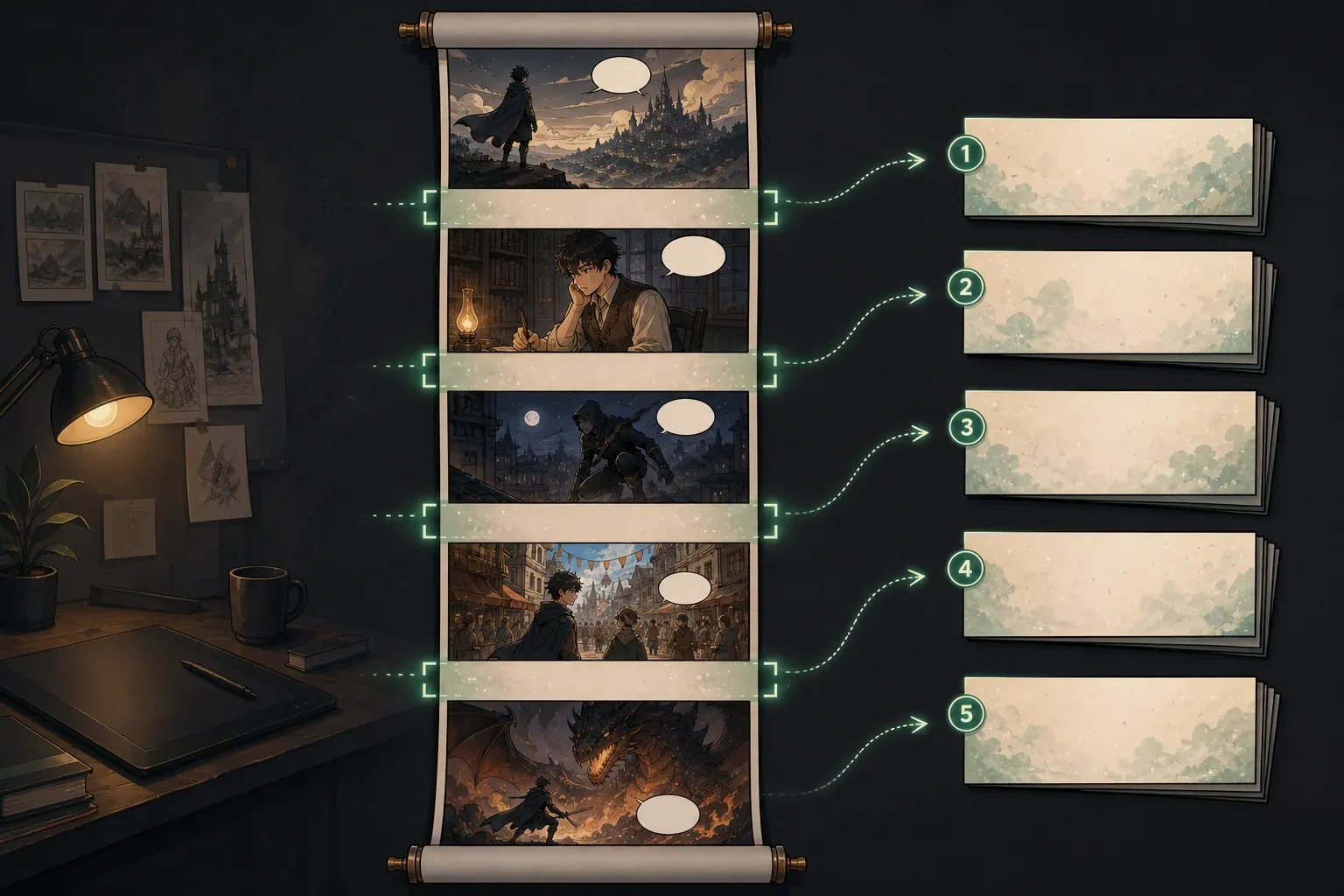
Direct answer
To split a webtoon safely, start with an approved vertical episode export. Choose a target height, look for a quiet horizontal gap near each proposed boundary, then compare the bottom of each slice with the top of the next. Blank-space detection can suggest a cut, but visual review must confirm that dialogue, characters, sound effects and story timing remain intact.
What to get right
- Finish lettering and layout before slicing the episode.
- Treat target height as a guide and move cuts only within a controlled margin.
- Prefer panel gutters or low-detail transitions, but never assume a pale area is empty.
- Review neighboring slice edges together before downloading the final ZIP.
Product claims were checked against the current Comics Maker workflow on the date shown above. External references are used for publishing and craft guidance; generated output still requires human review.
Prepare the long webtoon image before you cut it
Start from the approved episode export, not a half-finished drawing file. Lettering, speech balloons, captions, vertical sound effects and scene spacing all affect where a safe boundary can exist. If those elements are still moving, every image-cut decision is temporary. Keep the layered source file in your drawing application and make a separate flattened PNG, JPG or WebP for the final upload.
Remove accidental transparent margins and check the full scroll at its intended reading width. A face that appears comfortably far from a boundary on a large monitor may sit much closer after the image is scaled for mobile. Place deliberate quiet space between major story beats when the composition permits it. This is production spacing, not filler: it gives the reader a pause and gives the export workflow somewhere safer to divide the file.
WEBTOON announced that CANVAS can optimize and divide long episode images to fit its maximum image dimensions. That platform behavior is useful, but a creator still benefits from reviewing their own boundaries when the same files must be supplied to clients, archives or other publishing systems. Check the current rules in the destination dashboard before export because platform requirements can change.
- Keep the layered master separate from the flattened upload file.
- Confirm reading width, color mode, transparency and intended output format.
- Move speech balloons and important effects away from likely transition zones.
- Record the final export settings so a revised episode can be reproduced.
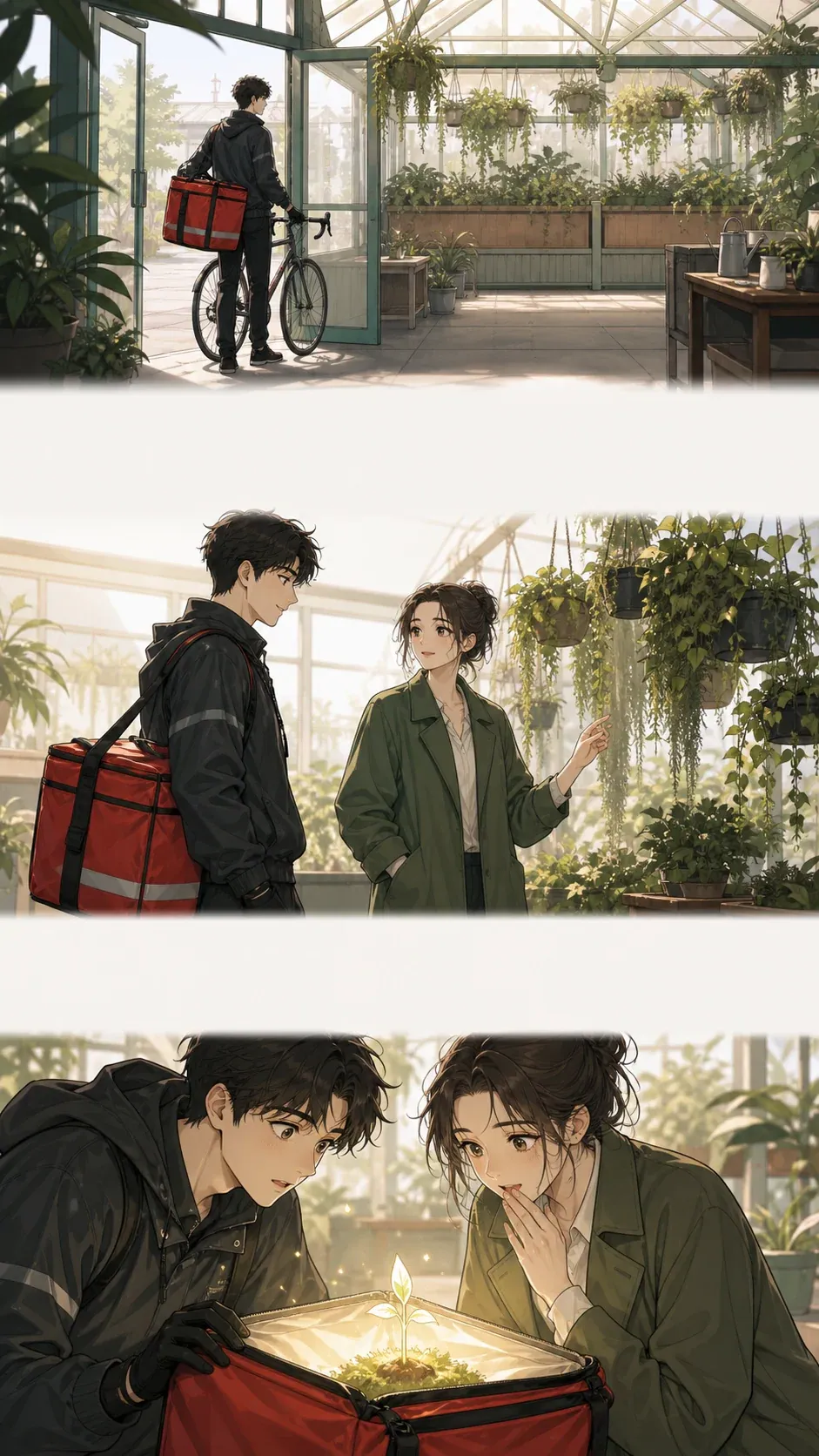
Choose a target height and a limited search margin
A target height answers the file-handling question: roughly how tall should each slice be? A search margin answers the composition question: how far may the boundary move to find a safer row? Keeping those controls separate prevents two common mistakes—strict cuts that land on artwork and very loose cuts that create wildly uneven files.
Begin with the destination specification, then leave room for verification. If a platform accepts a maximum height, do not assume every slice should touch that maximum. File size, image complexity and future edits also matter. A fixed-height cut is appropriate when exact dimensions are required and the artwork was designed around those coordinates. A modest search margin is better when the episode has panel gutters of different heights.
| Setting | What it controls | Use it when |
|---|---|---|
| Target height | Approximate slice length | The destination has a known file-height limit |
| Search margin | How far a boundary may move | Panel gutters sit near, but not exactly on, the target row |
| Zero margin | Strict fixed-height cuts | A production template already defines exact boundaries |
Find safe webtoon cut points without trusting blank pixels blindly
A pixel-based image cropper can examine brightness, local variation, dark-line density and transparency near a proposed row. A broad, uniform strip often indicates a panel gutter—the quiet space between panels. It can also be a white speech balloon, a bright sky, pale clothing or the center of a face. The score is evidence about pixels, not an understanding of panel grammar.
Read the page as a sequence. A good cut normally falls after one readable story beat and before the next begins. Avoid splitting a speech balloon from its speaker, a reaction from its cause, a vertical effect from the action it describes, or a background that deliberately bridges two panels. Full-bleed action scenes may have no safe automatic break; in that case, place the boundary manually in the layered source file or revise the transition.
The manhwa cropper scans near each requested height and presents the proposed slices before export. Use the tool to reduce repetitive canvas work, then apply editorial judgment to the final boundaries.
Review every slice as a connected pair
Do not inspect slice 3 in isolation. Put the bottom of slice 2 beside the top of slice 3 and ask whether a reader can continue without reconstructing a missing visual relationship. Confirm that the coordinates are contiguous, the filenames sort correctly and no thin row has been lost or repeated.
Pay special attention to faces, hands, feet, speech-balloon tails, text baselines, long vertical sound effects, speed lines and architectural edges. Then zoom out and check pacing. A technically clean boundary can still damage a reveal if the next file opens too early or leaves an unintended pause.
- Compare the previous bottom edge with the next top edge.
- Open the exported files in filename order, not modification-date order.
- Check transparent pixels and JPG backgrounds after re-encoding.
- Keep one archive of the approved long source and one of the final slices.
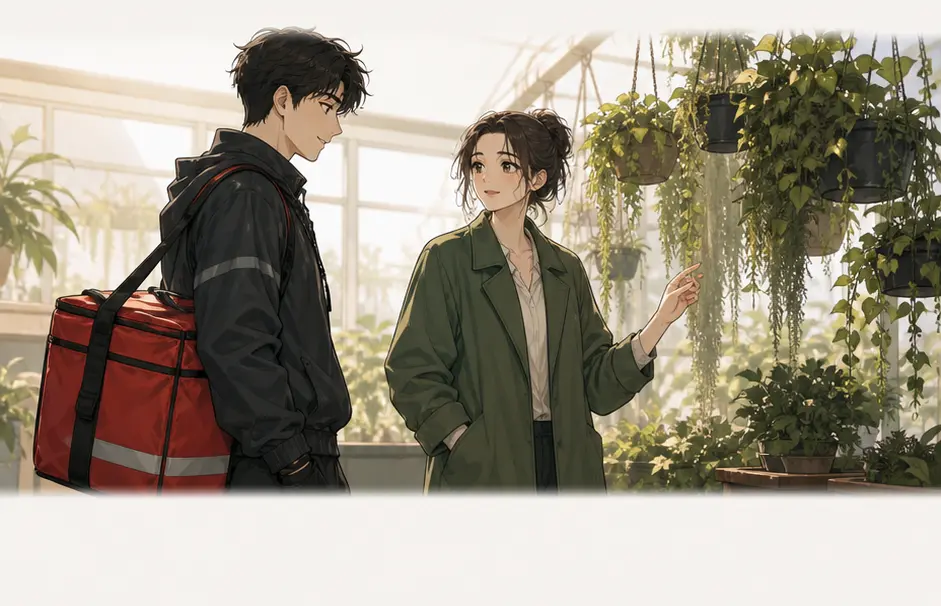
Common webtoon slicing mistakes
The most expensive mistake is cutting the image before the episode is locked. A late dialogue edit can move a speech balloon across a boundary and force the entire numbered set to be rebuilt. The next is relying on color alone: white is not the same as empty, and dark is not always unsafe. Another frequent failure is exporting files that sort as 1, 10, 11, 2. Use padded numbers such as 001, 002 and 003.
Avoid repeated lossy saves. If the destination accepts PNG and the art includes sharp lettering or transparency, keep that advantage unless file size makes a different format necessary. If JPG is required, export once from the approved source at a reviewed quality setting. Cropping software is not a rights tool; only process and publish work you own or are authorized to handle.
Next steps
Continue with the right production tool
Crop the finished episode
Upload one long image, preview every proposed boundary and export ordered slices or a ZIP.
Open the manhwa cropperPlan the vertical episode first
Write scroll beats, dialogue cues and visual actions before the art is assembled.
Use the comic script makerTranslate approved pages
Handle source text, translated text and page review as a separate localization task.
Open the manga translatorSources
References used
External references support specific workflow claims. Product behavior is described from the implemented Comics Maker pages.
- WEBTOON CANVAS: Uploading Long Episode Images
Official notice describing automatic optimization and slicing to the stated maximum image dimensions.
FAQ
Common questions
Where should I split a webtoon?
Split between completed visual beats, preferably in a panel gutter or low-detail transition. Avoid faces, speech balloons, effects and artwork that continues across the boundary.
Can blank-space detection find every safe cut?
No. It can locate visually quiet rows, but it cannot understand dialogue, character anatomy, suspense or platform-specific preview points. Review every proposed boundary.
Should every webtoon slice have the same height?
Only when the final export specification requires it. Otherwise, a controlled height range can preserve safer transitions while keeping the files practical.
Does cropping preserve layers and metadata?
No. Browser crop output is a flattened raster image and may not preserve color profiles, metadata, animation or layered editing data. Keep the original master separately.