
comic strip maker สำหรับดราฟต์การ์ตูนที่แก้ไขได้
เปลี่ยนไอเดียเป็นจังหวะเรื่อง ทิศทางตัวละคร ช่องภาพ คำบรรยาย และตัวเลือกส่งออกในขั้นตอนการทำงานเดียว
Start on this page
Strip scene
Write one sentence for the situation and one for the change or punchline. Dialogue can be added later in Studio.
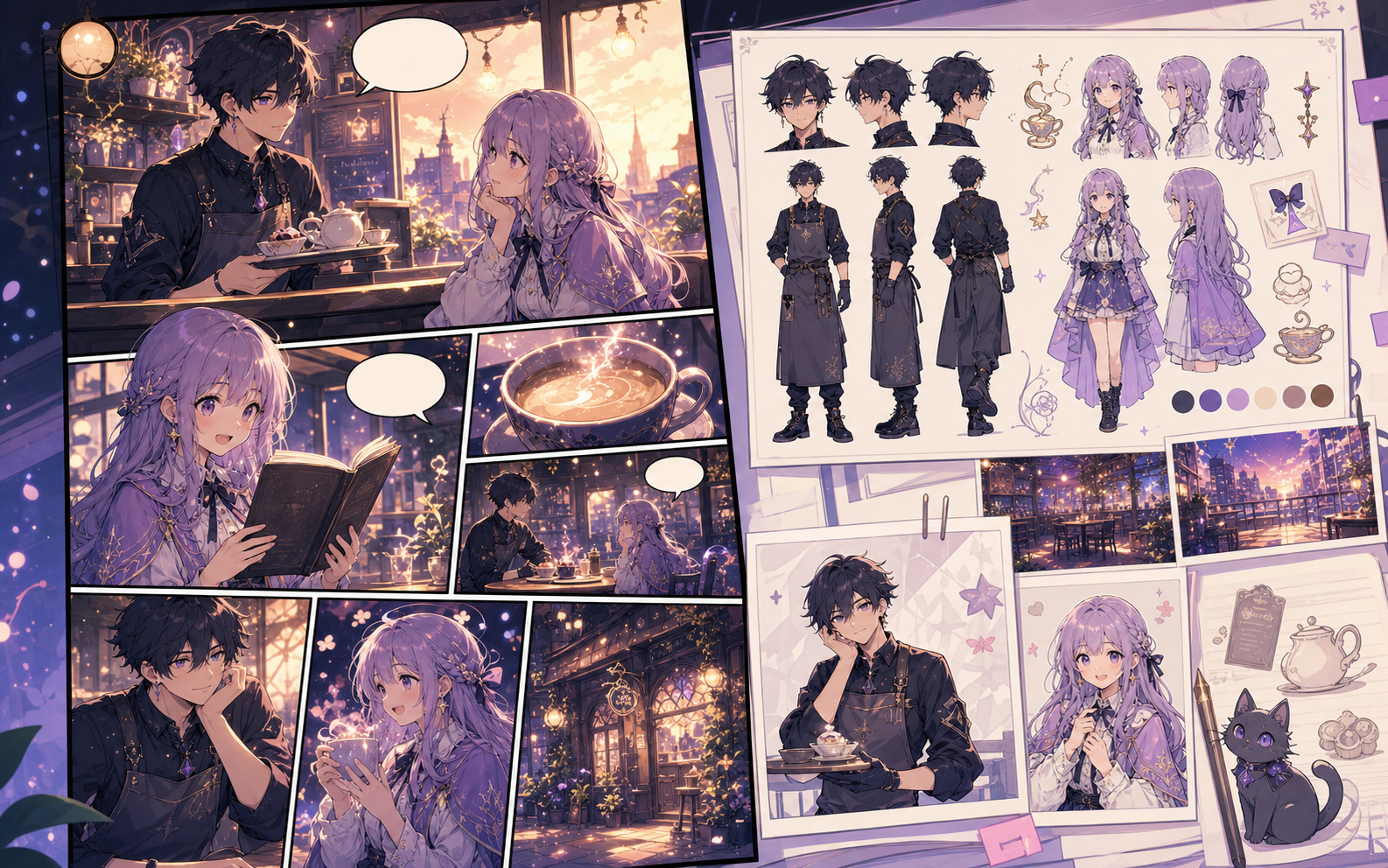
What this draft does not do
- Image generation does not place reliable dialogue. Add and position speech bubbles in Studio after the panels are ready.
- Long plots produce vague pages. Work one scene or page at a time and repeat concrete character details.
คำจำกัดความ
comic strip maker คืออะไร?
comic strip maker คือขั้นตอนการทำงานของ Comics Maker ที่เปลี่ยนไอเดียเรื่องเป็นตัวละคร ช่องภาพ ข้อความ และดราฟต์ที่แก้ไขได้
คำตอบสั้น
ควรใช้เวิร์กโฟลว์นี้เมื่อใด
ใช้ comic strip maker เมื่อต้องการดราฟต์การ์ตูนที่ตรวจทานและแก้ไขได้อย่างรวดเร็ว
สร้างมาเพื่อภารกิจทำคอมิกจริง
เหมาะสำหรับครีเอเตอร์ ครู และทีมที่ต้องการตรวจดราฟต์การ์ตูนก่อนทำงานขั้นสุดท้าย
01
Use comic strip maker to plan the story before generating final panels.
02
Keep character notes, scene direction, captions, and layout choices together.
03
Continue editing the draft after generation so the page stays useful for review.
ครีเอเตอร์สร้างอะไรได้ที่นี่
เลือกประเภทโปรเจกต์ที่ใกล้ที่สุด แล้วเปิด Studio พร้อมเป้าหมายดราฟต์ที่ชัดขึ้น
สิ่งที่คุณร่างได้
นี่คือจุดเริ่มต้นที่ใช้ได้จริงสำหรับตรวจทาน แชร์ และแก้ไขต่อ
ทางลัดเข้าสู่ Studio
เริ่มจากขั้นตอนเล็กที่สุดที่มีประโยชน์ แล้วปรับดราฟต์ในตัวแก้ไข
หน้าเพิ่มเติมสำหรับสร้างคอมิก
เวิร์กโฟลว์ที่เกี่ยวข้อง
comic character maker
comic character maker: สร้างดราฟต์การ์ตูนใน Comics Maker พร้อมโครงเรื่อง ตัวละคร ช่องภาพ บอลลูนคำพูด และการส่งออกที่แก้ไขได้
เปิดหน้า
เวิร์กโฟลว์ที่เกี่ยวข้อง
เครื่องมือสร้างบทการ์ตูนแบบช่องต่อช่อง
เปลี่ยนโครงเรื่องให้เป็นหน้าและช่องภาพที่แก้ไขได้ พร้อมคำบรรยายภาพ แนวทางบทสนทนา คำบรรยาย เอฟเฟกต์เสียง และพรอมต์สร้างภาพ
เปิดหน้า
เวิร์กโฟลว์ที่เกี่ยวข้อง
comic book generator
comic book generator: สร้างดราฟต์การ์ตูนใน Comics Maker พร้อมโครงเรื่อง ตัวละคร ช่องภาพ บอลลูนคำพูด และการส่งออกที่แก้ไขได้
เปิดหน้า
คำถามที่พบบ่อยเกี่ยวกับ comic strip maker.
What can comic strip maker create?
It can create comic draft structure, panel ideas, character direction, captions, and editable layouts.
Do I need drawing skills to use comic strip maker?
No. You can start with text, then refine the comic draft in the editor.
Can I edit the result?
Yes. You can keep adjusting prompts, captions, bubbles, layout, and export settings after the first draft.
เริ่มดราฟต์คอมิกถัดไป
เปิด Studio เลือกเลย์เอาต์ แล้วเปลี่ยนไอเดียเป็นดราฟต์คอมิกที่ทำงานต่อได้
ลองเวิร์กโฟลว์นี้